
To make a cell grow with text in Excel, turn on Wrap Text (Home → Alignment → Wrap Text), then apply AutoFit Row Height (Home → Cells → Format → AutoFit Row Height). Those two steps together will expand the row so every line of your text is fully visible. If a row still won't expand, the most likely culprits are a manually-set row height or a merged cell, both of which block AutoFit from working.
How to Make Cells Grow With Text in Excel

Marcus Whitmore
20 May 2026
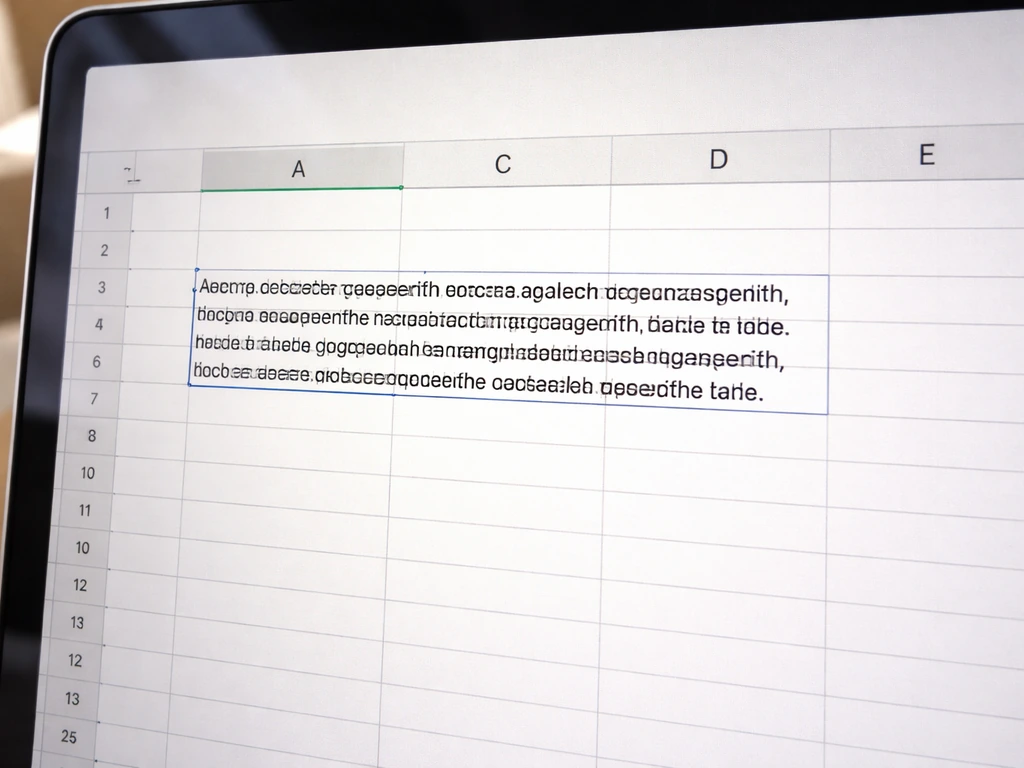
What "cells grow with text" actually means in Excel
When people search for this, they almost always mean one of two things: they want text to stop getting cut off at the cell edge, or they want the row to physically get taller as they type more content. In biology, cells grow by accumulating mass and eventually dividing, they expand until physical or chemical constraints stop them.
Animal cells grow by accumulating mass, and you can think of that expansion as being similar to how a cell expands in your spreadsheet when constraints allow it how do animal cells grow. For the biology side of that comparison, you can also learn more about how fast do cells grow and what affects their growth rate.
Excel rows behave similarly: a row will expand to fit content up to whatever limits you've set, and understanding those limits is the whole game here.
The key insight is that Excel separates these two behaviors. Wrap Text controls whether text wraps onto multiple lines inside the cell at all. AutoFit Row Height controls whether the row gets tall enough to show all those wrapped lines. You need both turned on. Wrap Text without AutoFit gives you hidden text. AutoFit without Wrap Text just gives you a taller row with one long line that still spills over the edge.
Turn on Wrap Text and resize rows to fit your content

Here's the quickest path from cut-off text to fully visible text, step by step.
- Select the cell or cells where you want text to wrap. You can click a single cell, drag across a range, or click a column/row header to select the whole column or row.
- Go to Home → Alignment group → click Wrap Text. You'll see the button highlight, and any existing text in those cells will immediately reflow onto multiple lines.
- With the same cells still selected, go to Home → Cells group → click Format → AutoFit Row Height. Excel will calculate exactly how tall each row needs to be and resize it instantly.
- Check your results. All the text should now be visible without scrolling or resizing manually.
You can also resize a single row manually without using the ribbon. Hover over the bottom border of any row number on the left-hand side until your cursor turns into a double-headed arrow, then double-click. That double-click triggers AutoFit for just that one row, which is handy when you only need to fix one problem row quickly.
Make row height auto-adjust across a range or the whole sheet
Fixing one cell at a time gets old fast. If you're working with a full dataset or a messy imported spreadsheet where dozens of rows have clipped text, you want to fix everything at once.
Apply Wrap Text and AutoFit to a selected range
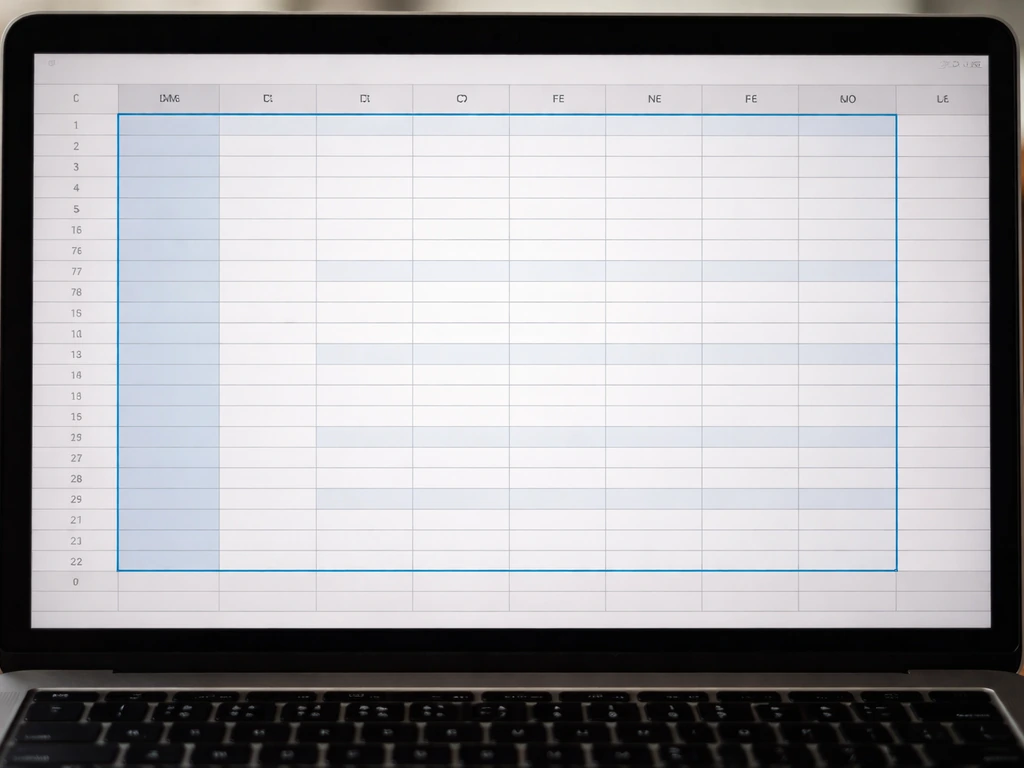
- Click and drag to select the range you want to fix, for example A1: D50.
- Click Home → Wrap Text to enable wrapping across the whole selection.
- Click Home → Format → AutoFit Row Height to resize all selected rows at once.
Apply it to the entire worksheet at once
- Click the Select All button — the small triangle in the top-left corner of the spreadsheet, where the row numbers and column letters meet. Everything on the sheet is now selected.
- Click Home → Wrap Text.
- Then either use Home → Format → AutoFit Row Height, or simply double-click any border between two row-number headings on the left side. Both methods apply AutoFit to every row on the sheet in one move.
The double-click-on-the-border trick is worth memorizing. It's faster than navigating the ribbon and works just as reliably. Just make sure all rows are selected first, or you'll only resize the row whose border you clicked.
Why rows sometimes won't expand (and how to fix it)
This is where most people get stuck. You've turned on Wrap Text, you've run AutoFit, and the row is still not showing all the text. There are a few specific reasons this happens, and each has a direct fix.
The row height is set manually
If someone has manually dragged a row to a specific height (or set it via Format → Row Height with a fixed number), Excel locks it at that height. AutoFit won't override a manual height setting automatically. To fix it, right-click the row number, choose Row Height, and delete the specific value, or just run AutoFit Row Height again from the Format menu, which will override the manual setting and recalculate the best fit.
The cell is merged

Merged cells are the most common reason AutoFit silently fails. When two or more cells are merged, Excel cannot automatically calculate the row height needed for the wrapped content inside them. Microsoft's own documentation flags this explicitly. Your options are: unmerge the cells (Home → Alignment → Merge & Center → Unmerge Cells) and then reapply Wrap Text and AutoFit, or manually drag the row height to fit the content. If merging is important for layout reasons, you'll need to set the row height by hand.
Wrap Text isn't actually on
It sounds obvious, but it's worth checking. Click the cell in question and look at the Wrap Text button in the Home ribbon. If it's not highlighted or pressed-looking, wrapping is off for that cell. AutoFit can only expand rows based on what it can measure, and without Wrap Text, Excel sees a single long line of text and may not expand the row height at all.
Page layout view vs. normal view
If your sheet is in Page Layout view, the print margins and page breaks can affect how cells display and how AutoFit calculates height. Switch to Normal view (View → Normal) and try AutoFit again. This sometimes resolves mysterious cases where the row appears too short on screen but prints fine, or vice versa.
Formatting and workflow tips to keep everything consistent
Once you've got Wrap Text and AutoFit working, the next challenge is keeping things consistent as the spreadsheet grows and data changes. If you are also wondering how fast do cells grow biologically, that depends on the growth rate of the specific cell type and conditions like nutrients and temperature. Here are the habits that save the most time.
Use Format Painter to copy Wrap Text settings
If you've formatted one cell perfectly and want to copy its Wrap Text setting (along with font, color, and alignment) to other cells, use Format Painter. Click the formatted cell, click the paintbrush icon on the Home ribbon, then click or drag across the destination cells. Double-click the paintbrush to lock it on so you can paint multiple areas before turning it off.
Set Wrap Text as the default for a column from the start
If you know a whole column will always contain long text (like comments, descriptions, or notes), click the column header to select the entire column and enable Wrap Text before you start entering data. That way, every new entry automatically wraps without needing to reformat later.
Re-run AutoFit after pasting data
When you paste new data into a sheet, row heights don't automatically recalculate even if Wrap Text is on. Make it a habit to select the affected rows (or the whole sheet) and run AutoFit Row Height after any significant paste operation. This is especially important when importing data from external sources, where the incoming content might be much longer than what was there before.
Paste values only to avoid breaking wrap settings
If you copy and paste cells from another part of a workbook, a standard paste will bring in the source cell's formatting, which might not have Wrap Text enabled. Use Paste Special → Values (Ctrl + Alt + V, then V, then Enter) to paste only the data without overwriting your carefully set formatting. That way your Wrap Text and row height settings stay intact.
Quick reference: the most common settings at a glance
| Goal | Where to find it | Works on merged cells? |
|---|---|---|
| Enable Wrap Text | Home → Alignment → Wrap Text | Yes |
| AutoFit a single row | Double-click row border in row number area | No |
| AutoFit selected rows | Home → Cells → Format → AutoFit Row Height | No |
| AutoFit entire sheet | Select All, then Format → AutoFit Row Height | No |
| Set a fixed row height | Right-click row number → Row Height | Yes |
| Copy formatting to other cells | Home → Clipboard → Format Painter | Yes |
Think of a row's height the way biologists think about cell growth: expansion happens in response to internal pressure (the content), but only when external constraints (manual height locks, merged boundaries) aren't holding it back. In biology, red blood cells do not grow in the way most other cells do; they mature and change shape while developing before they are released into circulation cell growth. Remove those constraints, give the content room to breathe, and the row will size itself exactly as needed. In biology, cells grow in number by doing what: dividing to make new cells. That's really all there is to it.
FAQ
Why does AutoFit not make my row taller even though Wrap Text is on?
Check whether the row height is locked (a fixed value set manually). If it is, AutoFit cannot override it until you clear the set height (right-click the row number, choose Row Height, remove the fixed number) and then run AutoFit Row Height again.
If my text is still cut off, how can I tell whether the issue is wrapping versus row height?
Select the cell and confirm Wrap Text is enabled by looking at whether the Wrap Text button is active. If wrapping is off, Excel treats the content as a single line, so the row may not expand the way you expect.
Can I make the row grow automatically while I type, without manually running AutoFit?
Not reliably. Excel may keep the current row height until recalculation triggers, or when pasting/formatting changes happen. A practical approach is to enable Wrap Text first, then periodically run AutoFit Row Height on the affected rows (especially after pastes or imports).
Does AutoFit Row Height work the same way for multiple rows and an entire sheet?
Yes, but you must select the correct range first. If you only double-click the border for one row, only that row will resize. For bulk fixes, select all relevant rows (or the whole sheet) and then apply AutoFit Row Height so every row recalculates.
Why does the row look correct on screen but still looks wrong when printed?
Printing can use different display settings due to Page Layout view, margins, or page breaks. Switching to Normal view and re-running AutoFit Row Height often resolves cases where the on-screen sizing does not match the print output.
What happens if only one cell in a merged block needs more height?
With merged cells, Excel often cannot compute the wrapped height from the merged region, so AutoFit may fail for that layout. Your best options are to unmerge and then reapply Wrap Text and AutoFit, or manually set the row height for the merged block.
Will copying and pasting new text preserve the row growth behavior?
Sometimes not. After pasting, row heights may not recalculate even if Wrap Text is already enabled. After major paste operations, select the affected rows and run AutoFit Row Height to ensure the new, longer text is fully visible.
How do I keep my formatting (like font and alignment) when I paste values into cells that should wrap?
Use Paste Special to paste only values. If a normal paste brings in the source formatting, it may disable Wrap Text or change formatting in a way that makes AutoFit behave unexpectedly, so Paste Special → Values helps preserve your existing cell setup.
Is double-clicking the row border always the fastest way to fix one cell?
It’s fast, but only if the row height is not locked and the cell is actually wrapping. If Wrap Text is off or the row has a fixed height, double-clicking the border will not produce the result you expect, so verify those two conditions first.
How can I prevent this from happening later for a column that always contains long text?
Enable Wrap Text for the entire column before entering data. That way, new entries will wrap automatically, and you only need to run AutoFit Row Height when row heights do not update after a paste or data refresh.
Next Article
Cells Grow in Number by Doing What? Cell Division Steps
Explains how cells grow in number via cell division steps, what they need to divide, and why growth is limited by checkp